Creating a New Ad Unit using AdSense
To integrate ads into the StoryExploreWidget, follow the steps below to create a new ad unit on Google AdSense and send us the data-ad-client and data-ad-slot.
Step 1: Sign In to Google AdSense
- Go to Google AdSense.
- Sign in with your Google account.
Step 2: Create a New Ad Unit
- In the left-hand menu, click on Ads.
- Select By ad unit.
- Click on + Display Ads.
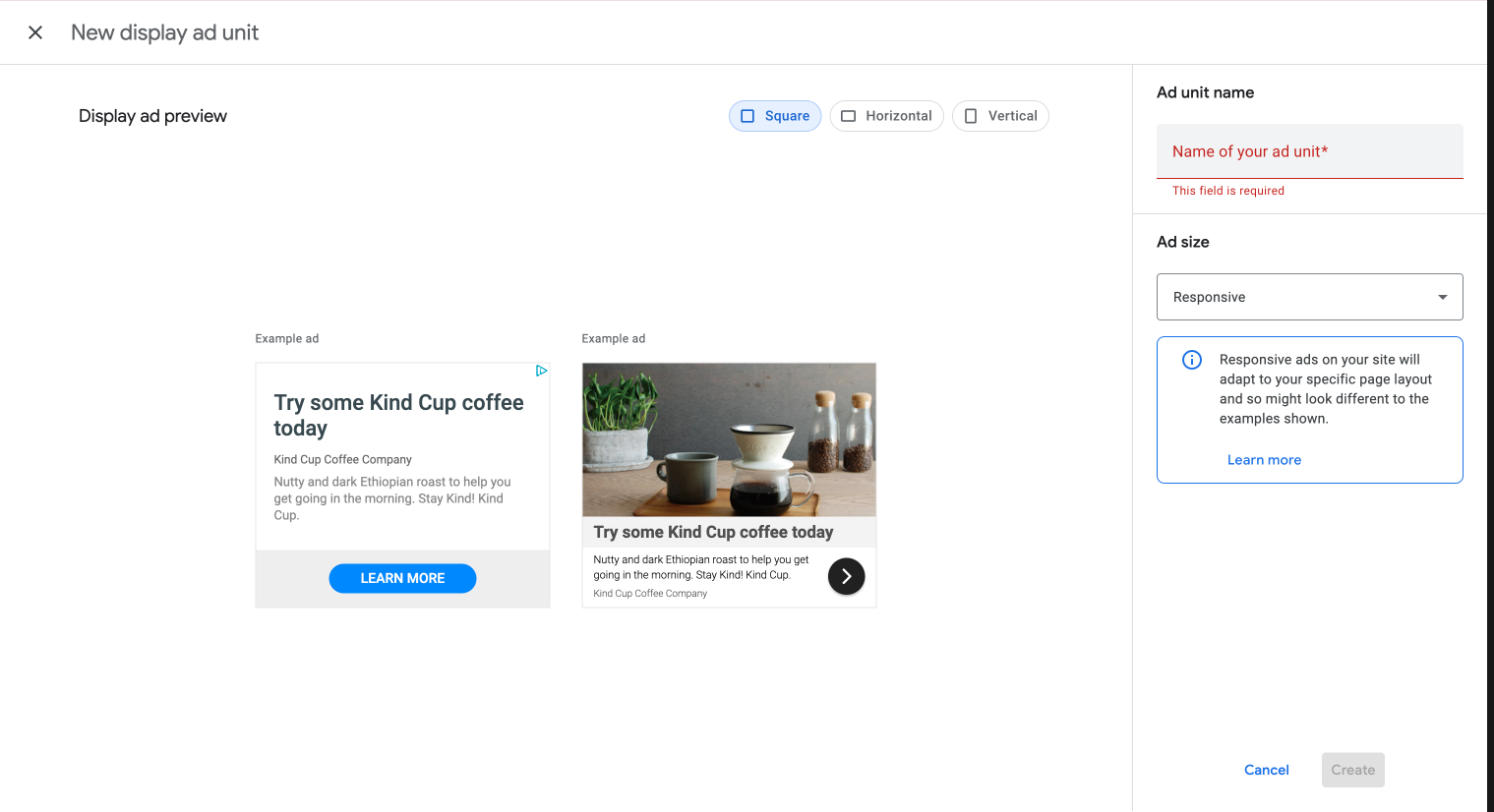
Step 3: Configure the Ad Unit
- Name your ad unit: Choose a name that helps you identify this ad unit later.
- Ad size: Select the size for your ad as responsive.
- Ad Shape: Choose the shape of your ad as Square
Step 4: Get the Ad Unit Code
- After configuring the ad, click Create.
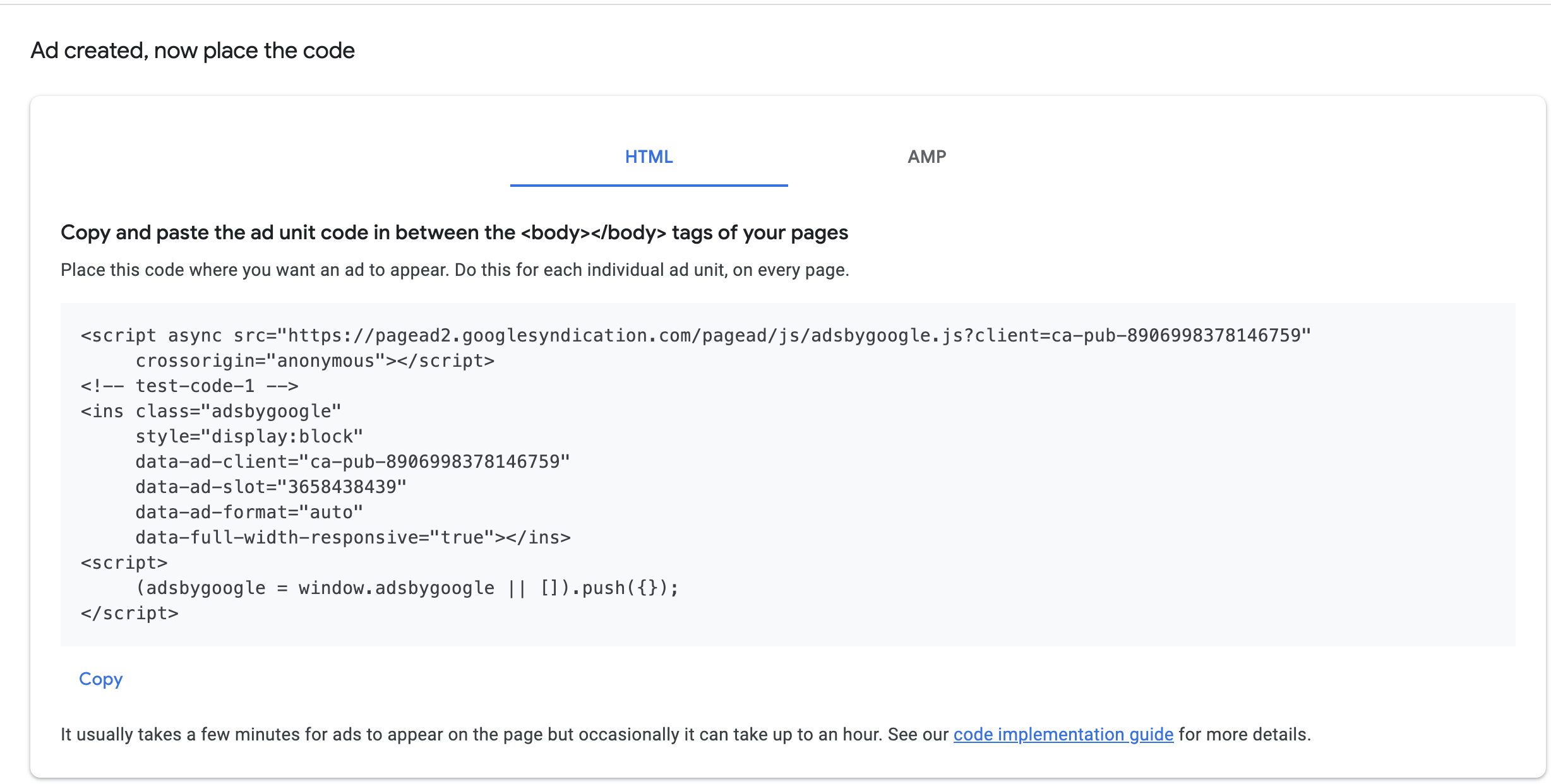
- You will see a code snippet. From this code, you need to extract two pieces of information:
data-ad-client: This is your Ad Client ID.data-ad-slot: This is your Ad Slot ID.
Step 5: Adding the <direqt-story-explore> Component to Your HTML
You can now add the custom element directly to your HTML where you want the StoryExploreWidget to appear.
<body>
  <div>
    <direqt-story-explore
      ad-sense-client-id="data-ad-client"
      ad-sense-slot-id="data-ad-slot" >
    </direqt-story-explore>
  </div>
</body>
After you've added the component open your website in a browser and verify that the component is correctly rendered and the ads are displayed as expected.